In today’s hyper-connected world, the average household has 22 smart devices vying for Wi-Fi attention, and a growing percentage of those belong to children who can navigate an iPad before they can tie their shoes. As parents, we’ve moved beyond simply limiting TV time—we’re now tasked with managing a complex ecosystem of tablets, gaming consoles, smart speakers, and phones that follow our kids from bedroom to classroom. While device-level parental controls offer a band-aid solution, savvy digital parents are discovering that true peace of mind begins at the source: the router itself.
Router-based parental controls represent a paradigm shift in digital parenting strategy, offering a centralized command center that governs every connected device in your home. Unlike app-specific restrictions that kids can often circumvent with a simple browser switch, network-level controls operate upstream, filtering content, managing access, and establishing digital boundaries before they even reach your child’s device. This comprehensive guide will equip you with the knowledge to transform your home network into a powerful tool for nurturing healthy digital habits while preserving the trust and independence your children need to thrive online.
Top 10 Router-Based Parental Controls for Kids’ Smart Devices
Detailed Product Reviews
1. Gryphon Guardian Mesh WiFi Router and Parental Control System with Content Filters and Advanced Cyber Security

Overview: The Gryphon Guardian is a purpose-built mesh router that puts family safety and cybersecurity at the forefront. This compact unit delivers AC1200 dual-band WiFi coverage up to 1,500 square feet, making it ideal for apartments or as a secure extension to existing networks. Unlike traditional routers, it integrates advanced parental controls and threat protection into a single, manageable package controlled entirely through a smartphone app.
What Makes It Stand Out: Its parental control system is among the most comprehensive in the consumer market, enabling screen time scheduling, real-time search monitoring, and granular app management across all family devices. The built-in next-generation firewall provides enterprise-level security features including 24/7 intelligent intrusion detection, ransomware protection, and automatic phishing scam blocking without requiring network expertise.
Value for Money: At $99, the Guardian offers compelling value for security-conscious families. While its coverage and AC1200 speeds trail behind WiFi 6 systems, the integrated cybersecurity eliminates costly subscription fees. It functions as a standalone router for small spaces or extends existing Gryphon networks, though its incompatibility with other brands limits expansion options.
Strengths and Weaknesses: Pros: Exceptional parental controls; robust built-in security; intuitive smartphone management; no monthly fees; simple plug-and-play setup Cons: Limited 1,500 sq ft coverage per unit; AC1200 technology lags behind WiFi 6; only compatible with other Gryphon devices; insufficient for large homes
Bottom Line: The Gryphon Guardian excels for apartment residents and families prioritizing child safety over maximum throughput. If you need comprehensive parental controls and cybersecurity in a compact package without technical complexity, this $99 investment delivers peace of mind that generic routers cannot match.
2. DBIT AX1500 WiFi 6 Mesh Wi-Fi System | 3,900 Sq Ft Coverage & 120 Devices | Dual-Band, Seamless Roaming, Parental Controls | Replaces Wireless Router and Extender | 4 Gigabit Ports Per Unit (2-Pack)

Overview: The DBIT AX1500 WiFi 6 Mesh System offers expansive coverage and modern connectivity at an aggressive price point. This two-pack blankets up to 3,900 square feet with dual-band WiFi 6 speeds reaching 1,500Mbps, supporting over 120 simultaneous device connections. Each node includes four Gigabit Ethernet ports, providing flexibility for wired devices throughout your home.
What Makes It Stand Out: Its combination of WiFi 6 technology, extensive coverage, and abundant Ethernet ports distinguishes it from budget competitors. The smart roaming technology ensures seamless device transitions between nodes without dropped connections, while WPA3-SAE encryption delivers enterprise-grade security. The system replaces both router and extender, eliminating compatibility issues common with mixed-brand setups.
Value for Money: At $79.99 for a two-pack, this system undercuts most WiFi 6 mesh competitors by 40-60%. The inclusion of eight total Gigabit ports adds significant value for homes with multiple wired devices. While brand recognition is limited compared to TP-Link or Netgear, the feature set matches or exceeds similarly priced offerings, making it a bargain for large homes needing reliable coverage.
Strengths and Weaknesses: Pros: Exceptional WiFi 6 coverage for the price; eight Gigabit ports total; supports 120+ devices; seamless roaming; WPA3 security; easy expansion Cons: Unknown brand reliability; limited advanced parental controls; no dedicated cybersecurity features; may lack premium support; firmware update track record uncertain
Bottom Line: For under $80, the DBIT AX1500 delivers WiFi 6 performance and coverage that typically costs twice as much. It’s ideal for large homes needing reliable connectivity for numerous devices. If you prioritize performance and ports over brand name and advanced security, this system offers unbeatable value.
3. Firewalla: Cyber Security Firewall for Home & Business, Protect Network from Malware and Hacking | Smart Parental Control | Block Ads | VPN Server and Client | No Monthly Fee (Purple SE)
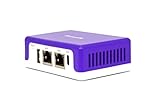
Overview: The Firewalla Purple SE is a dedicated cybersecurity appliance that functions as either a router or bridge to protect your entire network. Unlike traditional routers with bolt-on security, this $269 device focuses exclusively on threat prevention, parental controls, and network intelligence. Its intrusion prevention system monitors traffic up to 500Mbps, making it suitable for most home broadband connections.
What Makes It Stand Out: Firewalla’s deep packet inspection and cloud-based behavioral analytics provide proactive threat detection that consumer routers lack. The device offers granular parental controls, ad-blocking, VPN server/client functionality, and comprehensive network monitoring without subscription fees. Its ability to operate in router mode with policy-based routing and smart queue management gives advanced users enterprise-level control.
Value for Money: While expensive compared to basic routers, the Purple SE eliminates monthly security subscriptions that can cost $5-15 monthly. For small businesses and tech-savvy families, it pays for itself within 18-36 months. However, the 500Mbps IPS limitation may constrain gigabit internet users, and compatibility issues with some routers in simple mode require careful pre-purchase research.
Strengths and Weaknesses: Pros: Enterprise-grade cybersecurity; no subscription fees; powerful parental controls; VPN server/client; deep network insights; regular updates Cons: 500Mbps IPS throughput cap; complex setup for novices; potential router compatibility issues; higher upfront cost; requires technical knowledge
Bottom Line: The Firewalla Purple SE is a cybersecurity powerhouse for users who understand network security. It’s best suited for small businesses and tech-savvy families willing to trade plug-and-play simplicity for comprehensive protection. If your network handles sensitive data or you need advanced controls, the investment is justified.
Why Router-Level Controls Are the Foundation of Digital Parenting
Think of your router as the digital front door to your home. Just as you wouldn’t give a child unrestricted access to every room without guidance, you shouldn’t provide unfiltered internet access without strategic boundaries. Router-based parental controls work at the network layer, meaning they govern every device that connects through your Wi-Fi—whether it’s a school-issued Chromebook, a friend’s phone on guest mode, or that gaming console you didn’t realize had a built-in web browser.
This approach eliminates the whack-a-mole frustration of installing separate apps on each device and prevents the common pitfall of inconsistent enforcement. When your fourth-grader discovers that their tablet’s restrictions don’t apply to the smart TV’s YouTube app, you’ve lost the battle before it began. Network-level controls create a unified digital environment where rules apply evenly across all screens, reducing arguments and establishing clear, predictable boundaries that children can understand and respect.
Understanding How Router-Based Parental Controls Work
The Technology Behind Network-Level Filtering
Router-based parental controls function by intercepting and analyzing data packets as they travel between your home network and the internet. Modern systems use a combination of DNS filtering, IP address blocking, and deep packet inspection to categorize and manage traffic. When your child attempts to access a website, the router checks the domain against a continuously updated database of categorized sites—everything from educational resources to adult content, gaming platforms, and social media networks.
This process happens in milliseconds, creating a seamless experience for approved content while gracefully blocking restricted material. Advanced systems even use machine learning algorithms to identify emerging threats and inappropriate content that hasn’t yet been manually categorized, providing proactive protection against the ever-evolving digital landscape.
Device-Agnostic Protection Explained
The true power of router-level controls lies in their device-agnostic nature. Whether your teen connects via Ethernet cable, 5GHz Wi-Fi, or the guest network, the same rules apply. This is particularly crucial in households with mixed ecosystems—Apple devices, Android gadgets, Windows laptops, and gaming consoles all play by the same set of network rules. Even IoT devices like smart bulbs or voice assistants can be restricted, preventing your curious toddler from accidentally ordering 300 cans of Play-Doh through Alexa.
Key Benefits of Managing Devices at the Router Level
Centralized management saves countless hours of repetitive configuration. Instead of updating screen time limits on five different devices every time your child’s schedule changes, you modify one profile that instantly propagates across all their gadgets. This unified approach also provides comprehensive reporting, showing you a holistic view of your child’s digital activity rather than fragmented snippets from individual apps.
Router controls excel at closing loopholes. Tech-savvy kids can’t simply switch to incognito mode, use a VPN, or factory-reset their device to bypass restrictions because the rules exist outside their control. Even when they discover workarounds like using cellular data, many modern routers can detect when a device leaves the protected network and maintain logging or notify parents of the transition.
Essential Features to Look for in Parental Control Routers
Content Filtering and Category Blocking
The backbone of any parental control system is robust content filtering. Look for routers that offer granular category controls beyond the standard “adult content” block. Effective systems provide 50+ categories including violence, weapons, drugs, gambling, streaming media, file sharing, and even specific social platforms. The ability to create custom blocklists for specific URLs adds another layer of personalization, letting you restrict that one particular game site that’s been causing problems without blocking all gaming content.
Time Management and Scheduling Tools
Dynamic scheduling transforms your router from a simple blocker into a digital wellness coach. Seek systems that allow different rules for weekdays versus weekends, with the flexibility to adjust for school holidays or special occasions. The best implementations let you set total daily screen time allocations that children can spend across devices, teaching them to budget their digital minutes wisely rather than mindlessly scrolling until a hard cutoff.
Pause Internet and Bedtime Controls
The ability to instantly pause internet access for specific profiles is invaluable during dinner, homework time, or family game night. Bedtime controls should go beyond simple on/off switches, gradually reducing bandwidth and blocking stimulating content in the hour before sleep to support healthy circadian rhythms. Some advanced systems even integrate with smart home platforms to dim lights and lock devices simultaneously.
Usage Reporting and Activity Insights
Comprehensive analytics help you understand digital habits rather than just policing them. Look for routers that provide detailed but digestible reports showing which categories of sites were visited, peak usage times, and attempts to access blocked content. The best systems present this data visually through dashboards that highlight trends over time, helping you identify when a child might be struggling with sleep, school stress, or social pressures manifesting in their online behavior.
Setting Up Your Router’s Parental Control System
Initial Configuration Walkthrough
Begin by accessing your router’s administration panel—typically through a web browser at 192.168.1.1 or a dedicated mobile app. Enable parental controls and create a master admin password that’s completely different from your Wi-Fi password. This separation is crucial; sharing Wi-Fi credentials with guests shouldn’t compromise your parental control settings. Most modern routers guide you through a setup wizard that helps establish basic filtering levels appropriate for different age groups.
Creating User Profiles for Each Child
Resist the temptation to create a single “kids” profile. Individual profiles allow age-appropriate rules that respect your teenager’s need for autonomy while protecting your younger children’s innocence. Each profile should include the child’s name, age range (which often auto-suggests appropriate filter levels), and a profile picture for easy identification. This personalization also enables accurate reporting and helps children feel their digital experience is tailored to them, not arbitrarily restricted.
Assigning Devices to Profiles
The device assignment process varies by router but typically involves selecting from a list of currently connected devices and tagging them to a child’s profile. Many systems automatically recognize device types, helping you identify that cryptic “Intel-Device-47” as the family laptop. For households with many gadgets, some routers offer QR code pairing—scan a code on the device’s screen to instantly link it to the correct profile without manually hunting for MAC addresses.
Age-Appropriate Digital Boundaries by Developmental Stage
Preschoolers (Ages 3-5)
For the youngest digital natives, router controls should create a walled garden of pre-approved content. Block everything except specific educational sites and streaming services with robust kids’ profiles. Set extremely limited time windows—perhaps 30 minutes after breakfast and 30 minutes before dinner—to prevent screens from disrupting play, nap, and family time. The goal is establishing that internet access is a supervised, time-limited activity, not a constant background presence.
School-Age Children (Ages 6-12)
This group needs graduated freedom that grows with their digital literacy. Begin with strict filtering but introduce supervised access to search engines with safe search locked on. Implement homework modes that block entertainment sites during set study hours, and use time quotas that encourage them to make conscious choices about how they spend their screen time. Start involving them in the process, showing them their usage reports and discussing why certain categories remain blocked.
Teenagers (Ages 13-18)
Adolescents require a more nuanced approach that balances safety with respect for their developing autonomy. Rather than heavy-handed blocking, focus on time management, late-night usage prevention, and transparency. Many experts recommend shifting from restrictive controls to collaborative ones—letting teens see their own data and participate in setting reasonable limits. Block only the most dangerous categories while maintaining logging and alerts for concerning activity, fostering trust through openness about monitoring rather than surveillance.
Advanced Configuration Strategies for Power Users
Custom DNS Services Integration
For parents comfortable with technical configuration, integrating third-party DNS services like CleanBrowsing, OpenDNS FamilyShield, or Cloudflare for Families can dramatically enhance filtering capabilities. These services often provide more aggressive blocking and faster updates than router-native solutions. The setup involves changing your router’s DNS server addresses, a simple change that routes all domain requests through these family-friendly filters before they even reach your ISP.
VLANs and Network Segmentation for Kids
Advanced routers support Virtual Local Area Networks (VLANs), allowing you to create completely separate networks for children and adults. This segmentation means your work devices and smart home gadgets remain unaffected by parental control rules, while kids’ devices live on a heavily restricted subnet. You can even create a “homework network” with access only to educational resources and a “weekend network” with broader entertainment options, switching devices between them via automation or manual controls.
Bandwidth Prioritization and QoS Settings
Quality of Service (QoS) rules ensure that educational activities take precedence over entertainment. Configure your router to prioritize traffic to learning management systems, video conferencing platforms, and educational websites, while deprioritizing gaming and streaming services. During peak usage times, this prevents your high schooler’s Netflix binge from degrading your middle schooler’s Zoom class quality, teaching implicit lessons about digital resource management.
Balancing Safety with Privacy and Trust
The most sophisticated technical controls will backfire if they erode trust within your family. Children, especially teens, need to understand the why behind the restrictions. Frame router controls not as surveillance, but as scaffolding—temporary support structures that help them develop healthy habits until their prefrontal cortex can fully manage impulse control and risk assessment.
Consider implementing a transparency policy where older children can access their own usage dashboards and request category unblocks with justification. This transforms the dynamic from authoritarian to collaborative, teaching critical thinking about digital content rather than mere obedience. Regular family meetings to review digital habits and adjust controls together reinforce that safety and privacy aren’t opposing forces but complementary elements of responsible digital citizenship.
Troubleshooting Common Router Parental Control Issues
When Controls Don’t Seem to Work
If restrictions aren’t applying, first verify the device is assigned to the correct profile and that the router’s firmware is current. Many issues stem from devices using IPv6 connections that bypass IPv4-only filters—ensure your parental controls cover both protocols. Check that the device isn’t connecting through a guest network with different rules, and confirm that DNS-over-HTTPS (DoH) is disabled or accounted for, as this can circumvent DNS-based filtering.
Dealing with Tech-Savvy Kids Who Bypass Restrictions
When children use VPNs, proxy sites, or cellular hotspots to circumvent controls, it’s often a sign the restrictions are too heavy-handed or that underlying issues need addressing. Rather than escalating an arms race, have direct conversations about why they’re seeking workarounds. Technical responses include blocking known VPN domains, disabling guest networks, and using MAC address filtering to prevent unauthorized device connections. However, these should complement, not replace, trust-building dialogue.
Complementing Router Controls with Device-Level Settings
Router controls provide the foundation, but they work best when layered with device-specific settings. Enable Google SafeSearch and YouTube Restricted Mode at the device level as backup protection when kids use mobile data. Use operating system features like Apple’s Screen Time or Windows Family Safety to add app-specific time limits that router controls can’t enforce. This defense-in-depth approach ensures protection follows devices outside the home while maintaining consistency within it.
The Role of Open Communication in Digital Parenting
Technology alone cannot raise digitally responsible children. The most effective parental control strategy combines robust router settings with ongoing conversations about online experiences, digital footprints, and cyber hygiene. Create a family media plan that outlines expectations, consequences, and privileges in writing. Use router reports as conversation starters—“I noticed you’re spending a lot of time on social media after 10 PM, is everything okay?”—rather than accusation tools. This approach builds digital resilience, teaching children to navigate online risks independently rather than relying on filters they’ll eventually outgrow.
Future-Proofing Your Home Network for New Devices
As IoT devices proliferate, your parental control strategy must adapt. Choose routers that automatically detect and categorize new device types, applying default kid-friendly restrictions until you manually approve them. Enable notifications for every new connection attempt, and maintain a “pending approval” queue for devices that try to join your network. Consider routers with AI-powered device fingerprinting that can identify a new gaming console or smartwatch even if it attempts to disguise its identity, ensuring your controls extend to tomorrow’s gadgets as seamlessly as today’s.
Legal and Ethical Considerations of Digital Monitoring
While parents have broad legal authority to monitor minor children’s online activity, ethical considerations demand transparency, especially as kids approach adulthood. Many privacy advocates argue that covert monitoring damages trust and fails to prepare teens for independent digital life. Document your monitoring policies and share them with older children, explaining what you track and why. Be aware that some jurisdictions have specific laws about recording communications or tracking location—router logs that capture messaging app usage could potentially fall under these regulations. When in doubt, prioritize open monitoring over secret surveillance.
When to Seek Professional Network Setup Assistance
Complex home networks with multiple access points, mixed device ecosystems, and demanding performance requirements may exceed typical DIY capabilities. Consider hiring a network professional if you need VLAN configuration, enterprise-grade filtering, or integration with existing smart home platforms. Professionals can also help implement secure remote access so you can manage controls while traveling, and they can establish redundant filtering systems that maintain protection even if one layer fails. The investment often pays for itself in saved time and avoided family conflicts over improperly configured restrictions.
Measuring the Effectiveness of Your Parental Control Strategy
Effective digital parenting isn’t measured by how many sites you block, but by observable changes in behavior. Track metrics like sleep quality improvements, homework completion rates, and voluntary screen-free time as indicators of success. Survey your children periodically about whether they feel the controls are fair and effective—their perception matters as much as the technical reality. Review your router logs monthly not to catch misbehavior, but to identify patterns that suggest a need for rule adjustments or family conversations. Remember, the ultimate goal is raising digitally literate, self-regulating individuals who eventually need no external controls at all.
Frequently Asked Questions
How do router-based parental controls differ from apps like Circle or Qustodio?
Router controls operate at the network level, affecting every device automatically without requiring software installation. Third-party apps often provide more granular app-specific controls but can be uninstalled or bypassed by tech-savvy kids. Many parents use both: router controls for comprehensive coverage and device apps for detailed management of specific gadgets.
Will parental controls slow down my internet speed?
Properly implemented modern controls have negligible impact on speed—typically less than 1-2% latency increase. DNS-based filtering may actually improve performance by blocking ad-heavy inappropriate sites. However, deep packet inspection on budget routers can create bottlenecks; invest in a router with a powerful processor if you have gigabit internet or many simultaneous users.
Can my child use a VPN to bypass router restrictions?
Yes, VPNs can circumvent DNS and IP-based filtering by encrypting traffic. Advanced routers can block common VPN protocols and known VPN server addresses, but determined teens may find workarounds. The best defense combines technical blocks with trust-based conversations about why restrictions exist and what concerns they’re meant to address.
Do router controls work when my child uses mobile data?
No, router controls only apply to devices connected to your home network. When kids switch to cellular data, they leave the protected environment. Some router systems offer companion apps that extend logging and some controls to mobile devices, but these require installation and cooperation from the child.
How do I handle devices that guests bring into my home?
Set up a separate guest network with its own parental control profile—either unrestricted for adult guests or moderately filtered for friends of your children. Never give kids the main network password; instead, connect their devices to the filtered network and use MAC address filtering to prevent them from joining the guest network.
What should I do if legitimate educational sites are blocked?
Maintain a whitelist of approved educational domains that bypass category filters. Most routers allow you to add exceptions per profile, so your high schooler researching a controversial historical topic can access necessary content while younger siblings remain protected. Teach children how to request unblocks, turning false positives into learning opportunities.
Are router logs a violation of my teenager’s privacy?
This depends on your family’s values and your teen’s maturity level. Many experts recommend transparency: let teens know what’s logged and give them access to their own data. Consider logging only blocked attempts and category summaries rather than every URL visited, balancing safety with respect for their growing need for privacy.
How often should I review and adjust parental control settings?
Review settings monthly for younger children and bi-weekly for teens, whose needs and maturity change rapidly. Schedule quarterly family meetings to discuss digital wellness and collaboratively adjust rules. Always update controls before major life changes like school breaks, new device acquisitions, or shifts in academic workload.
Can I set different rules for different times of day without manual intervention?
Yes, modern parental control routers excel at automation. Create schedules that automatically shift from “homework mode” (educational sites only) at 4 PM to “free time mode” (broader entertainment access) at 7 PM, then “bedtime mode” (all traffic blocked) at 9 PM. These transitions happen seamlessly without daily parental input.
What happens to parental controls when I upgrade my router?
Most router-native parental controls don’t transfer between brands. Before upgrading, export your device lists and rules as a reference. Some premium routers offer cloud-based profiles that persist across hardware upgrades within the same ecosystem. Consider this continuity feature when making purchasing decisions to avoid rebuilding your entire control structure from scratch.